
Locations
Where things live: rooms, shelves, trucks, bins and freezers, as deep as you like.
A location can hold items and other locations. Set up your places the way you'd describe them out loud: Shop › Rack A › Top shelf, Garage › Garage Freezer, Truck 1. The Locations tab shows the top level; tap one to see what's inside.
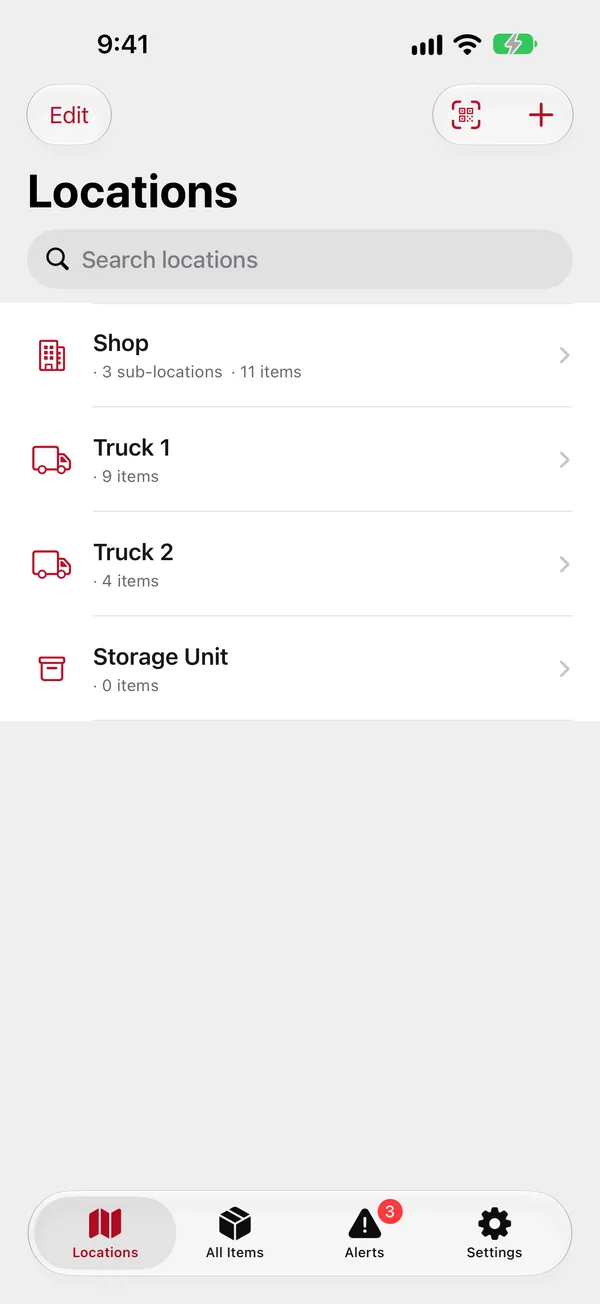
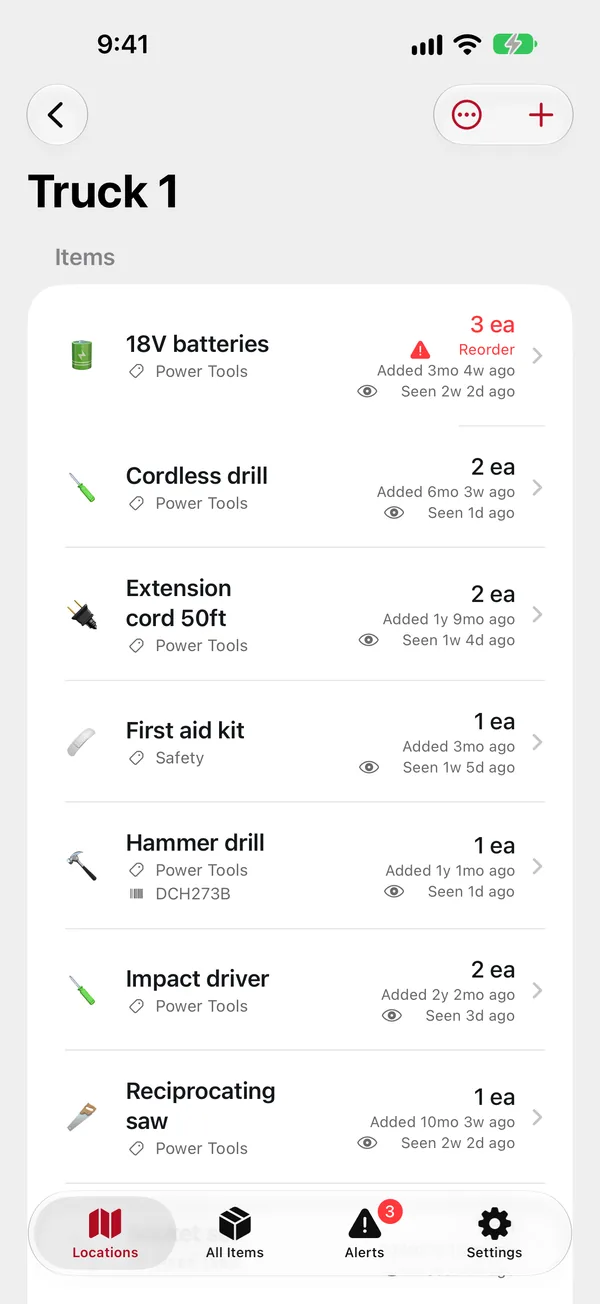
Each row shows how many sub-locations and items it has. The item count includes everything in its sub-locations, so "Shop · 40 items" means the whole shop. Use Search locations at the top to find one anywhere in the tree.
Adding a location
Admins only.
- On the Locations tab, tap + at the top right.
- Type a Name.
- Choose a Parent Location, or leave it at None (top-level).
- Optionally add a Photo (take one, or choose from your library) or pick an Icon. The photo shows instead of the icon.
- Tap the save button (the disk icon) at the top right.
Adding a location inside another
Open the parent location, tap … at the top right, then New Sub-Location. The parent is filled in for you.
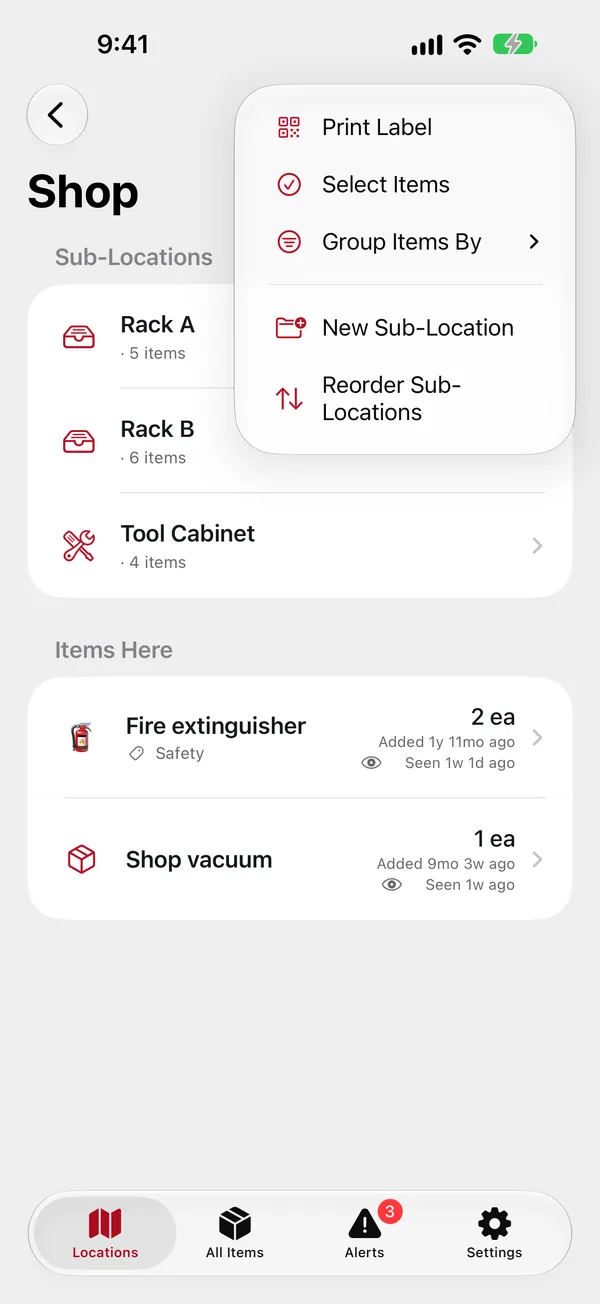
The same menu has Print Label, Select Items, Group Items By (none or category) and Reorder Sub-Locations.
Editing, moving and reordering
- Edit: on the location's page tap … › Edit Location, or in the list that shows it swipe its row to the right and tap Edit. From there you can rename it, change its photo or icon, or move it under a different parent (everything inside moves with it).
- Reorder: on the Locations tab tap Edit at the top left and drag the handles; inside a location use … › Reorder Sub-Locations. Tap Done when finished.
Moving a location to another household
Admins of two households (or of one and the household on your device) can move a location with everything in it: on its page tap … › Move to Household…, pick the household and confirm. Its sub-locations and items go along, archived ones too, with their photos and receipts. It lands at the top level of the other household (as "Garage (2)" if that name is taken there), and categories are matched by name.
- Between your account's households: printed labels and the quantity history move with it.
- To or from On This iPhone: the quantity history isn't kept, and labels printed for it stop working.
- An item whose barcode the other household already uses stops the move; change or clear that barcode first.
Deleting a location
Swipe its row to the left and tap Delete. A location that still holds items (directly or in a sub-location) can't be deleted; move or remove the items first. If it only has empty sub-locations, you're asked to confirm that they go too.