
QR labels and printing
Stick a label on a tool, a bin or a shelf; scan it later to jump right to it.
Printing a label
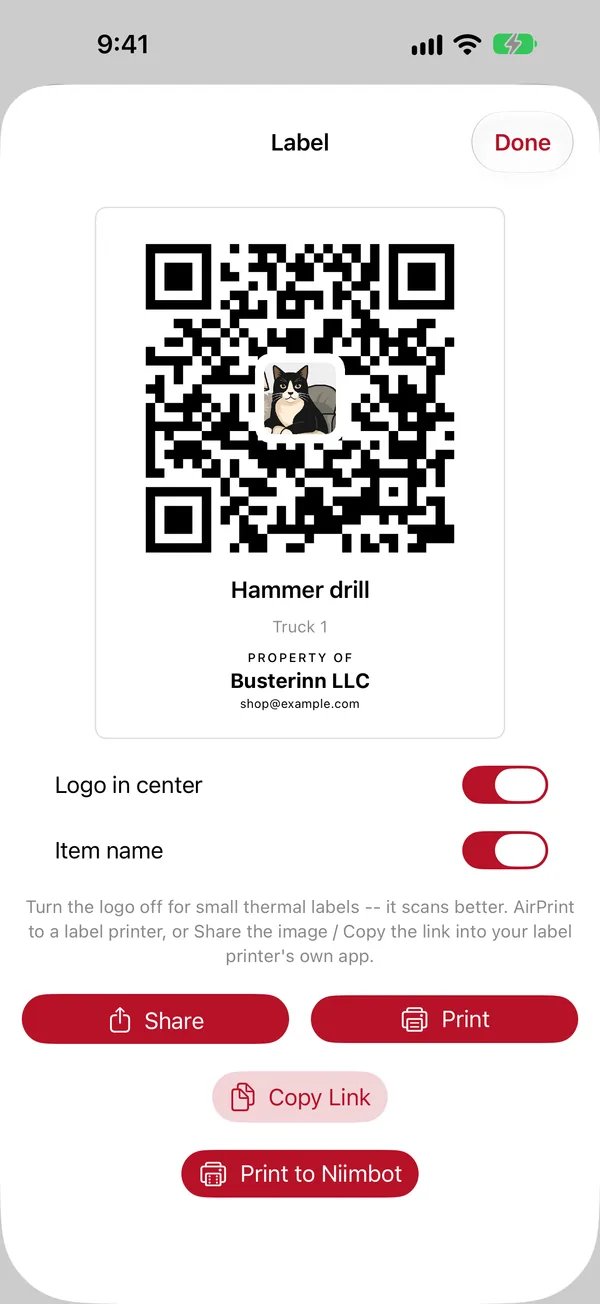
- For an item: open it and tap Print / Share Label. For a location: open it and tap … › Print Label.
- Check the preview. Turn Logo in center and the name on or off for this label.
- Choose how to print:
- Print to Niimbot: straight to a Niimbot label printer over Bluetooth (below).
- Print: any AirPrint printer, on sticker sheets or plain paper.
- Share: the label as a picture, to send or open in another label printer's app.
- Copy Link: the link the QR code holds.
Niimbot printers
BIN Inventory prints directly to the Niimbot B1 (wide labels, with a big QR code and the name underneath) and the Niimbot D11 (narrow labels, with the name beside the code). The D110 isn't supported.
- Turn the printer on and keep it near your phone. There's nothing to pair in iOS Settings.
- Tap Print to Niimbot. The first time, allow Bluetooth when iOS asks.
- The app finds the printer, connects and prints. You'll see each step under the button until it says Printed.
If it says Niimbot not found, make sure the printer is on, charged and close by, and that it isn't connected to another phone or to Niimbot's own app. If Bluetooth was denied, turn it on for BIN Inventory in the iPhone's Settings app.
"Property of" labels
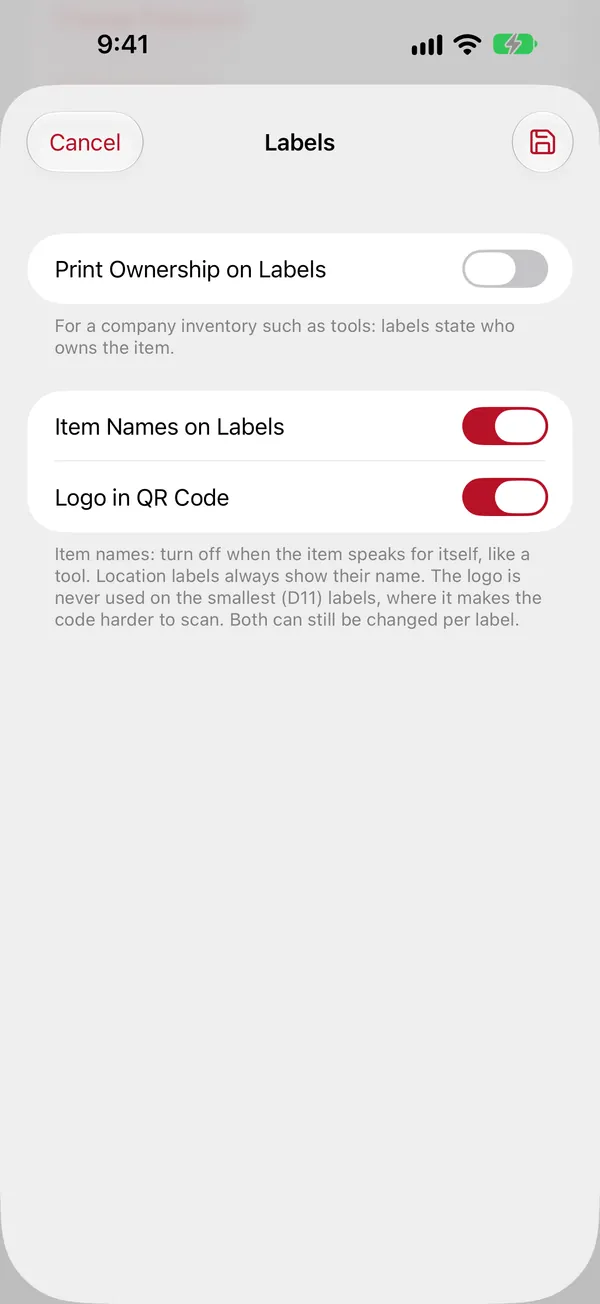
For company tools, an admin can have every label say who owns it: Settings › Labels › Print Ownership on Labels, then fill in the owner (your company name) and, optionally, a contact for If found, contact. The labels then print "PROPERTY OF …", and anyone who scans one without the app sees a page with the owner and contact, never what the item is.
The same screen sets the defaults for every label: Item Names on Labels and Logo in QR Code. You can still change both on each label.
Don't use labels?
An admin can hide QR codes and labels for the whole household: Settings › QR Codes & Labels. The scan buttons and print buttons disappear. Labels you already printed keep working.