
Your household
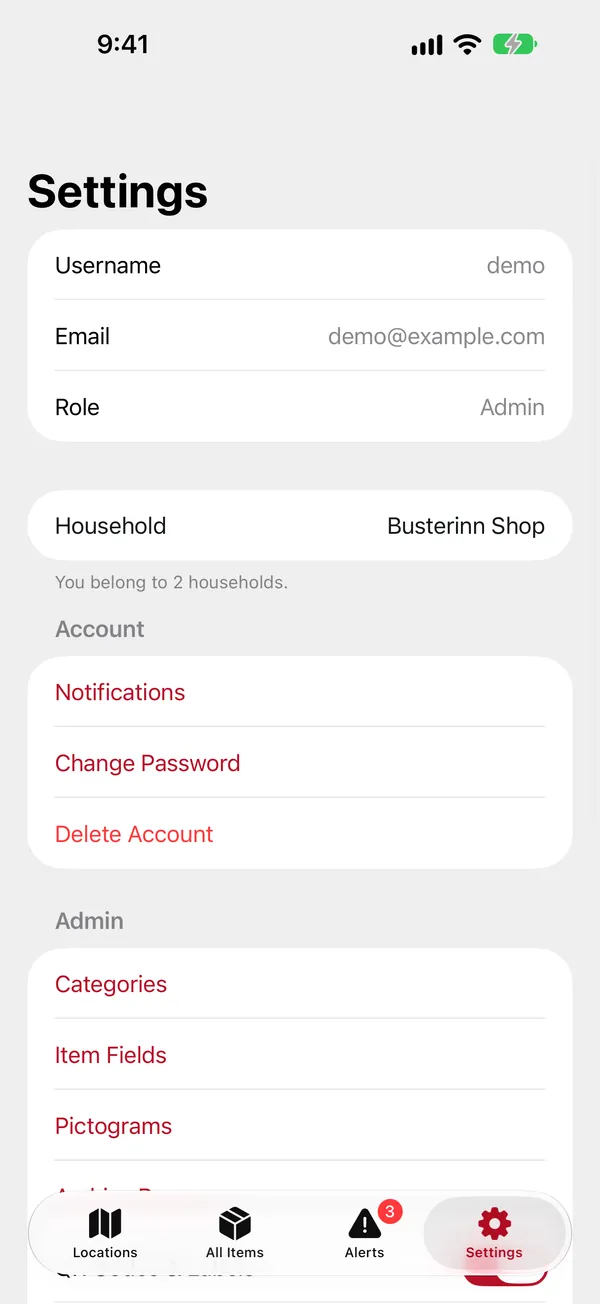
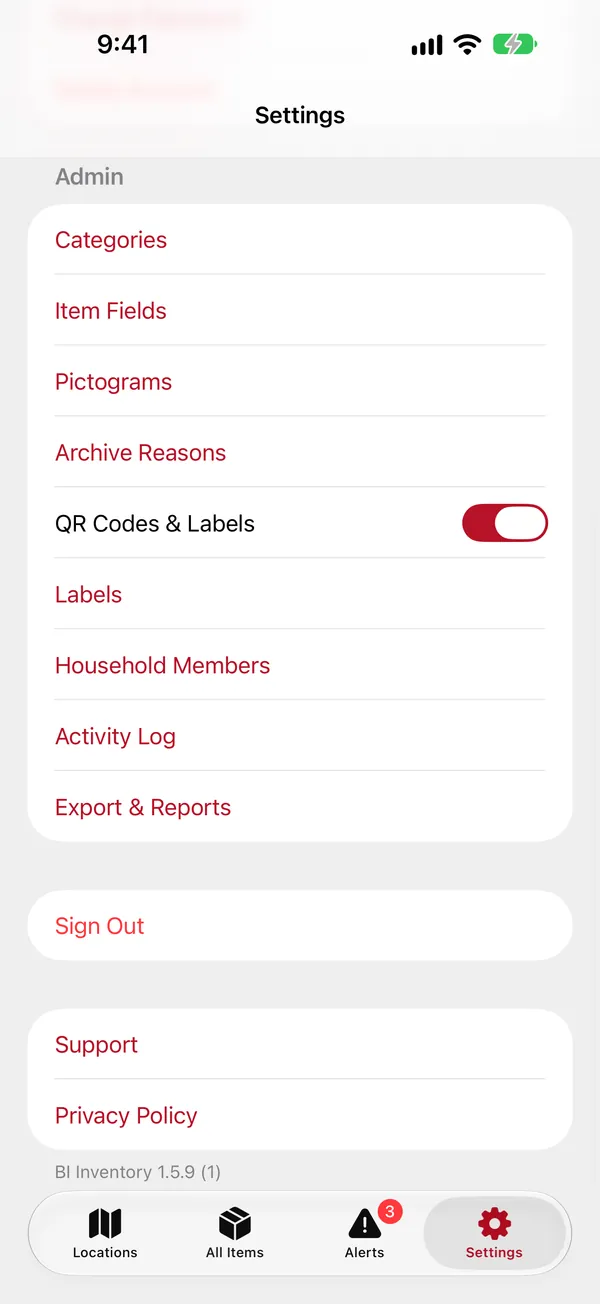
For admins: who's in it, and how it's set up. Everything here is under Settings › Admin.
Adding people
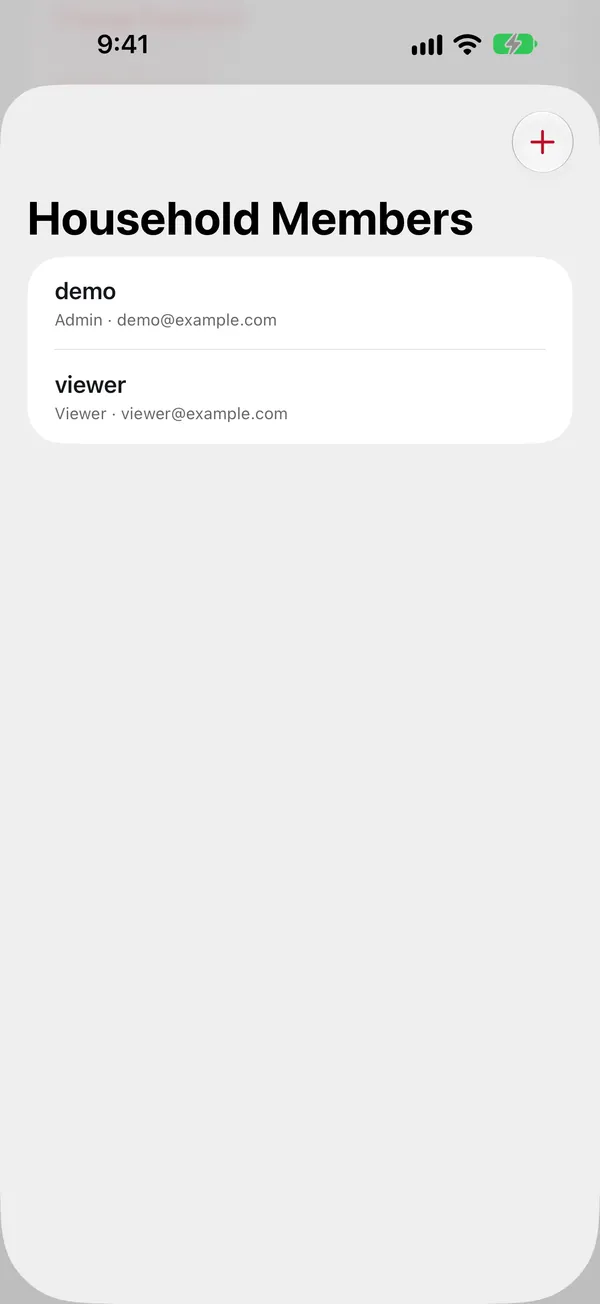
- Settings › Household Members, then +.
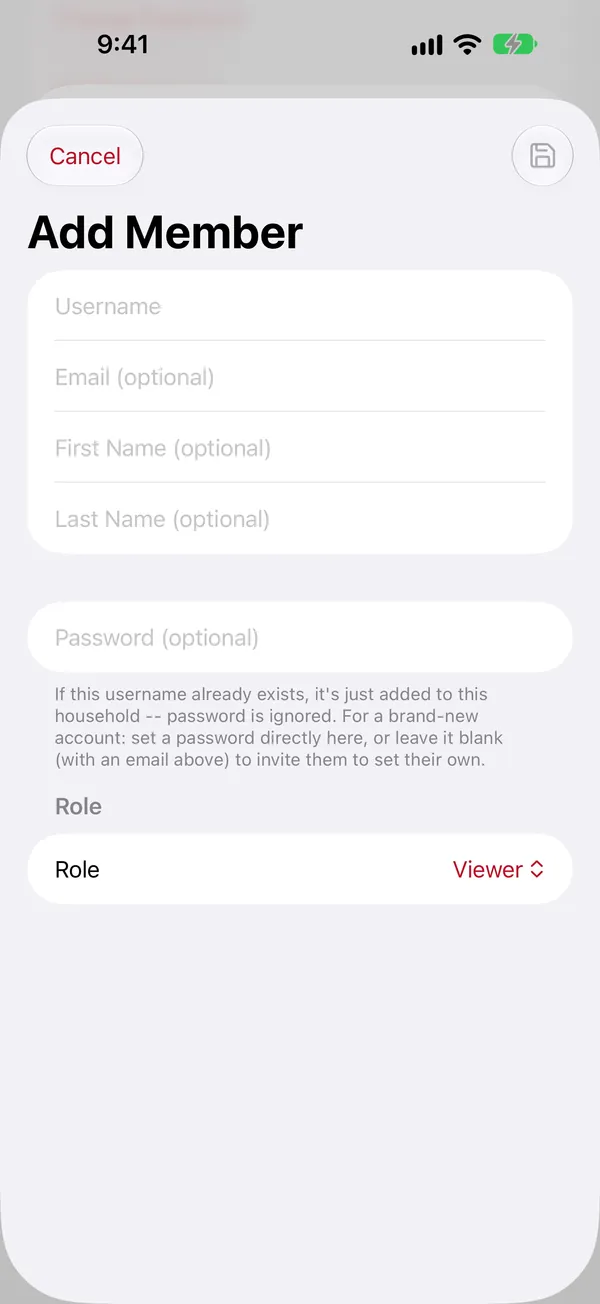
- Enter a Username. If that person already has a BIN Inventory account (in another household, say), that's all you need: they're added to yours.
- For a new account, add their email and name, and either set a Password to give them, or leave it blank and they'll get an email to set their own.
- Choose the Role: Viewer (the default) or Admin. See admins and viewers.
- Tap save.
Changing a member
Tap the person to change their role, Set New Password… (this signs them out everywhere), or Remove From Household. Removing someone doesn't delete their account or anything they added.
Item fields
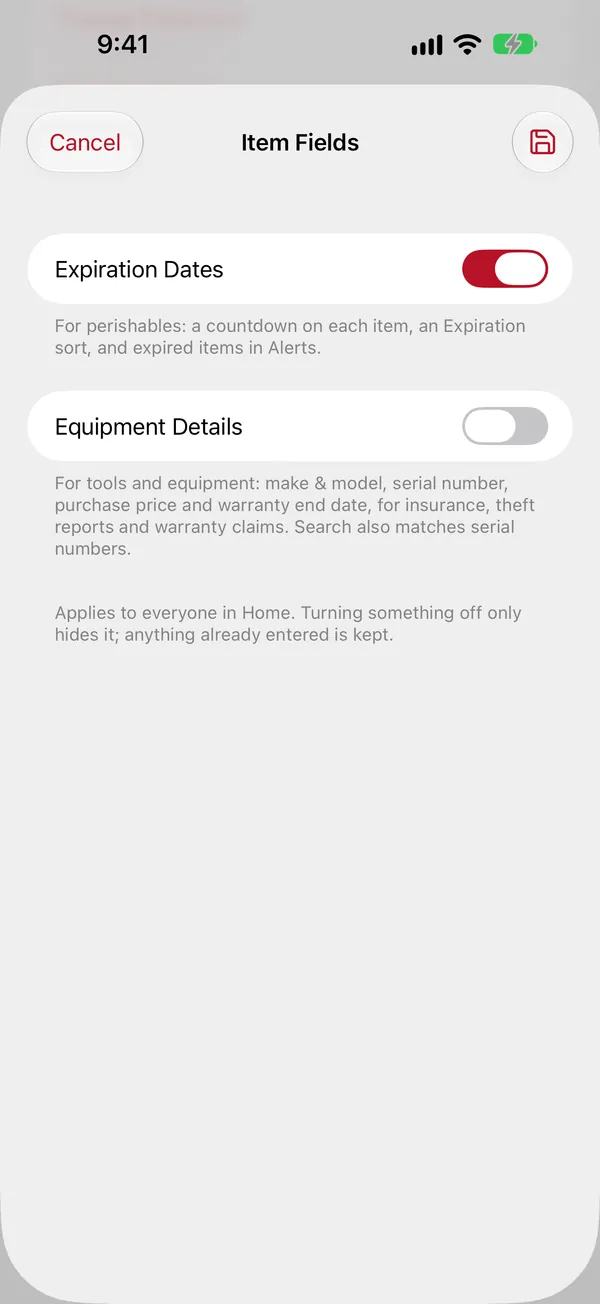
Item Fields chooses which optional fields everyone sees: Expiration Dates (on by default, for food) and Equipment Details (make and model, serial number, price and warranty, for tools). Turning one off only hides it; nothing is deleted.
Categories
New categories are made from the item form as you go. Categories lists them with how many items use each; swipe one to delete it. Its items are kept, just without a category.
Pictograms
Pictograms chooses the little pictures offered for items and for locations: tools for a shop, food for a kitchen. Tap one to remove it, add any emoji, or Upload Your Own Image (your logo, say). A picture can also come from the web: type or paste a link to the image and tap Add (a link to a page uses its preview image), copy the image in Safari and tap Paste, or drag it in. On the website, drop an image on the page or paste one.
Also here
- Archive Reasons: which reasons are offered when an item is taken out.
- QR Codes & Labels and Labels: label printing and "Property of".
- Export & Reports: download everything, or a PDF report.
Activity Log
Activity Log lists every change in the household, newest first: what was created, updated, moved, archived, restored or deleted, and stock changes, each with who did it and when. Entries are kept for a year.
A second household
Want a separate inventory, for home and for work? Households are set up by us; email us and we'll make one with you as its admin. Then switch between them in Settings › Household. For a private one just for you, add a household on your device instead (how).