
User Guide
How to use BIN Inventory on iPhone and iPad, step by step. The Apple Watch app has its own page.
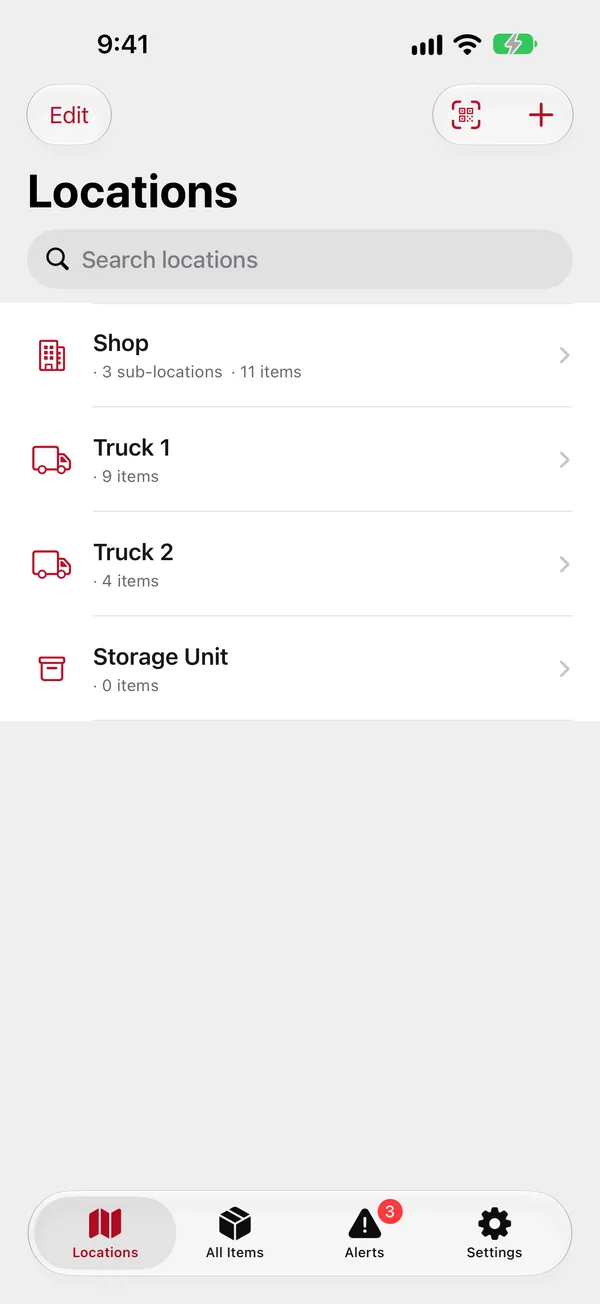
BIN Inventory keeps one shared list of what your household or business owns: what it is, how many there are, and where they are. Everything is organized by location (a room, a shelf, a truck, a bin), and locations can sit inside other locations, so "Shop › Rack A › Bin 3" is as easy as "Kitchen › Pantry".
1. Getting startedSigning in, the four tabs, households and Face ID.
2. LocationsRooms, shelves, trucks and bins, nested as deep as you like.
3. Adding itemsNames, quantities, photos, receipts, barcodes and the optional fields.
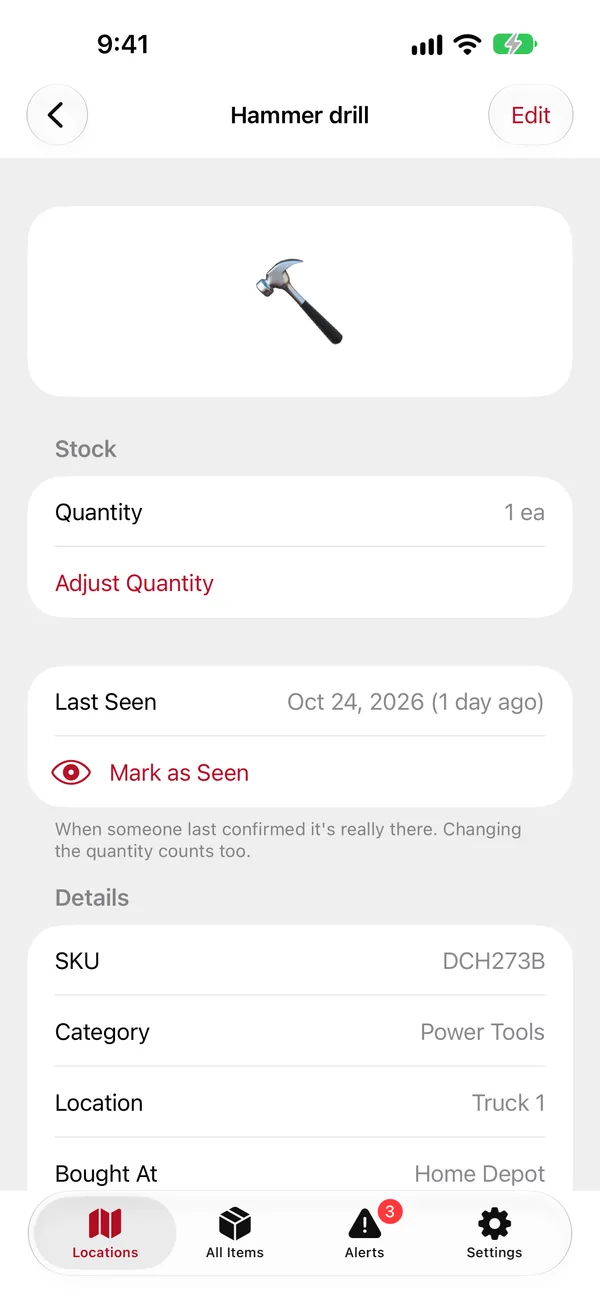
4. Everyday useCounting stock in and out, moving things, marking them as seen.
5. Finding thingsSearch, sort and filter, and scanning labels.
6. QR labels and printingPrinting labels on a Niimbot printer or with AirPrint.
7. Alerts and notificationsLow stock, out of stock and expiration reminders.
8. Lost, stolen and used upTaking items out of the inventory, and bringing them back.
9. Your householdMembers, roles and the admin settings.
10. Export and reportsDownloading your data and the insurance / theft report.
11. Apple WatchFinding things and changing counts from your wrist.
12. Your accountPassword, notifications, signing out and deleting your account.
Need help? See Support or email
support@busterinn.com.