
Getting started
Signing in, finding your way around, and keeping the app locked.
Without an account
You don't need an account to use BIN Inventory on one iPhone or iPad. On the sign-in screen tap Use Without an Account: your inventory, photos and receipts are kept only on that device and come back with its iCloud or computer backup. Nothing is sent to us. Labels, notifications, exports, the Apple Watch app, the web app and sharing with other people need an account. To sign in later, tap Settings → Sign In to an Account. The on-device inventory isn't copied to the account: it becomes one of your households (below), called On This iPhone.
Getting an account
BIN Inventory accounts are by invitation. There's no sign-up screen: an admin of your household or company adds you (how) and gives you a username and a password, or has the app email you a link to set your own. To start using BIN Inventory for your own household or business, email us.
Signing in
- Install BIN Inventory from the App Store and open it. Buster is on the icon.
- Enter your Username and Password, then tap Sign In.
Forgot your password?
- On the sign-in screen tap Forgot password?.
- Enter your username and tap Send Code. If your account has an email address, a 6-digit code arrives in a minute or so.
- Enter the code and your new password twice, then tap Reset. The code is good for 15 minutes.
No email on your account? Ask an admin of your household to set a new password for you.
The four tabs
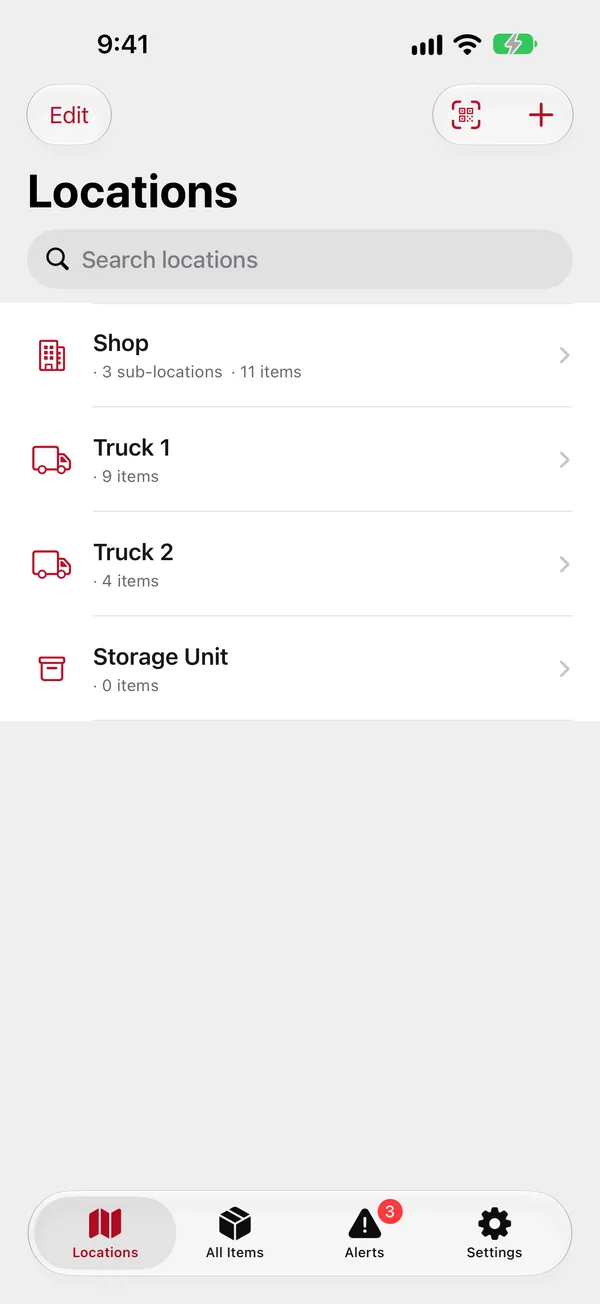
- Locations: your places (rooms, shelves, trucks, freezers) and what's in each. Start here to put things away or find them.
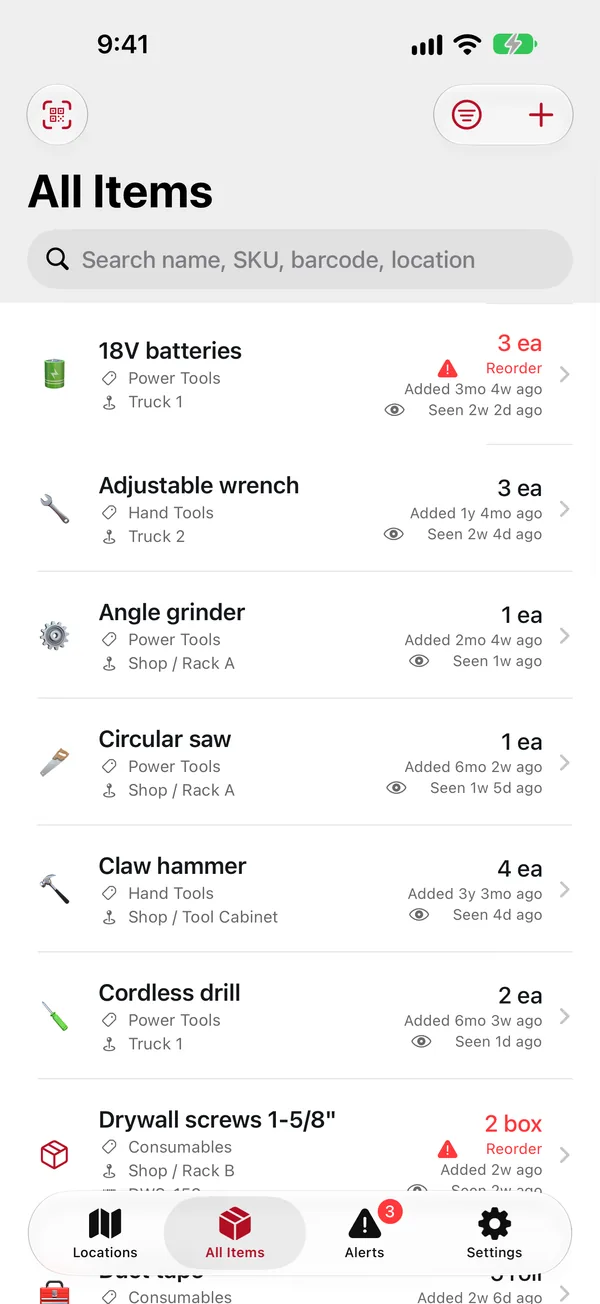
- All Items: everything in one list, with search, sorting and filters.
- Alerts: what's expired or running low, and your notifications (the bell). The red number on the tab counts them.
- Settings: your account, notifications, Face ID, switching households and, for admins, the household's settings.
Households
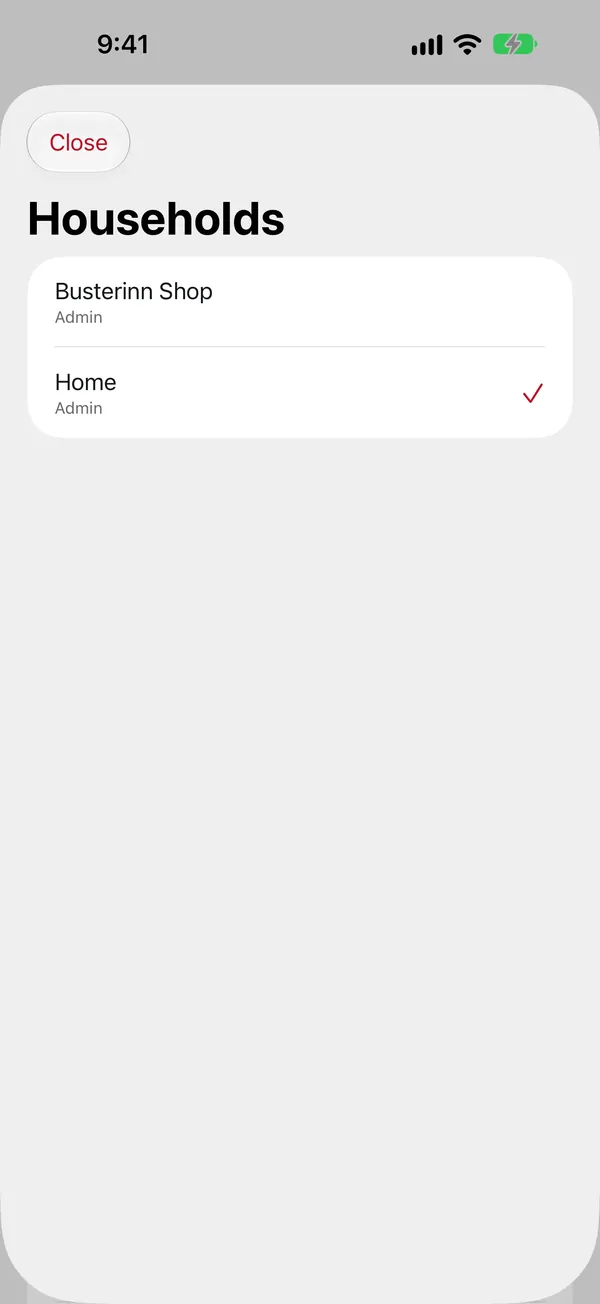
Everything in BIN Inventory belongs to a household: a family, a shop, a company. Everyone in a household sees the same items. You can belong to several (say, your home and your work) and switch between them in Settings › Household; tap the one you want.
One household can live only on your device: On This iPhone (or iPad). It's there if you used the app without an account; otherwise tap Add a Household on This iPhone at the bottom of the list. It's private (not shared, never sent to us), comes back with the device's backup, and has no labels, notifications or export. Notifications and scanned labels switch you back to your account's household.
Admins and viewers
Each member of a household is an admin or a viewer.
- Viewers can see and search everything, change quantities (Adjust Quantity), mark items as seen, scan and print labels, and get alerts.
- Admins can also add, edit, move and remove items and locations, and manage the household: members, categories, labels, fields and exports.
If a button in this guide isn't there for you, it's probably an admin-only one.
Face ID lock
BIN Inventory locks itself with Face ID (or Touch ID) when you've been away from it for a while. It's on by default. To change it, go to Settings › Security:
- Face ID Lock turns it on or off.
- Lock After sets how long you can leave the app and come back without Face ID: Immediately, 1, 5 (the default) or 15 minutes, or Never.
On the iPad
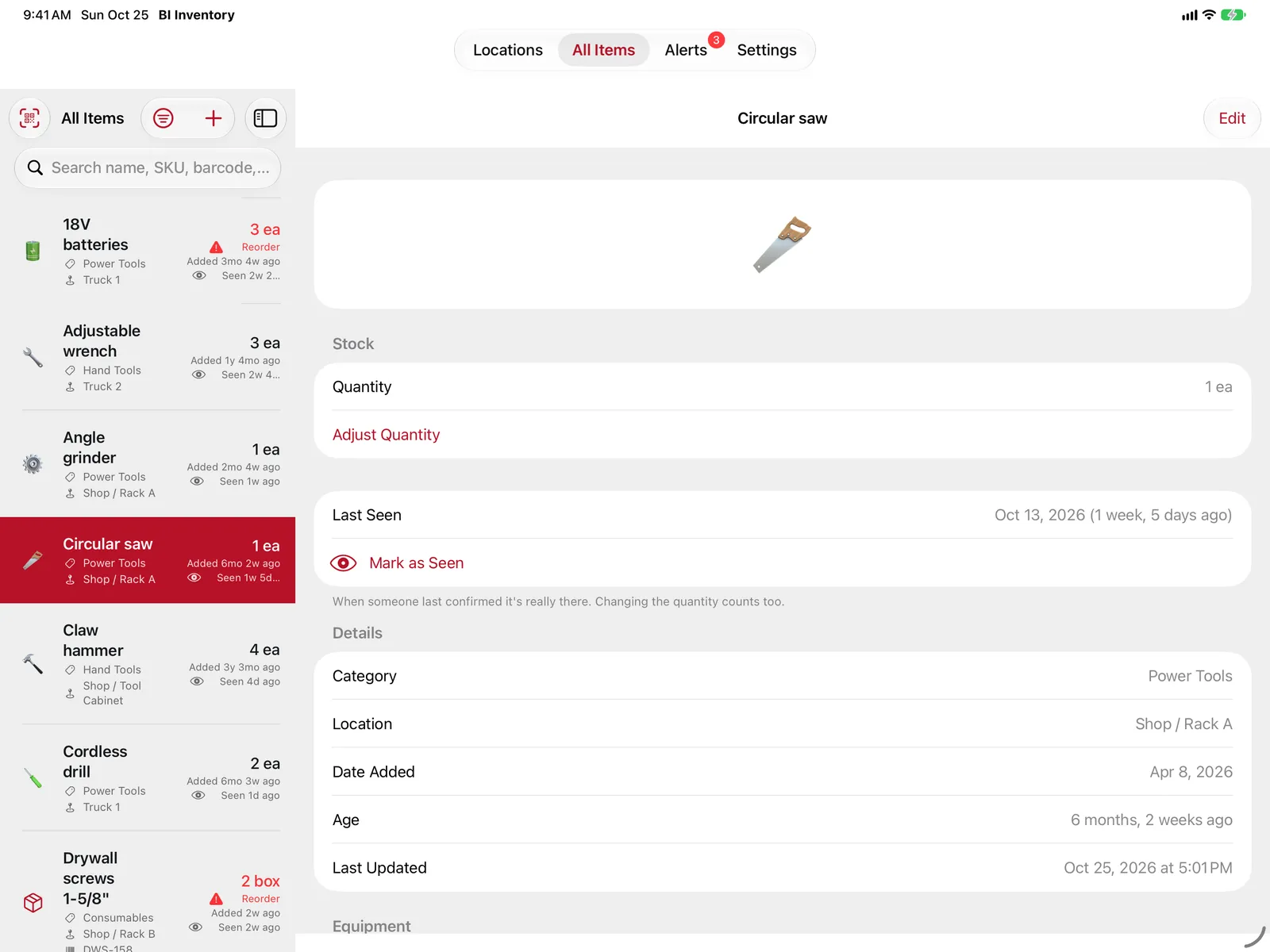
On an iPad, Locations, All Items and Alerts show the list on the left and the selected item or location on the right. Everything else works the same as on the iPhone.
On a computer
The same account works in a web browser at inventory.busterinn.com/app, which is handy for entering a lot of items at a keyboard.